













Made by animators, for animators
- Free in beta
- Reviewers never need an account
- Your work stays private
FrameSide is the Animworks review room: animation review software for the way animation gets made. Draw on the shot together in a live session, stack every version with the pass it belongs to, run the review the way your studio actually runs it, and keep each note on the exact frame it is about. Built with working animators, for the shot on your desk this week and for the studios in animation, VFX and games running a hundred of them.
JOIN THE BETA
Free while in beta. Your Animworks account is your key, so the invite signs you straight in.
Make your Animworks account, add a photo, and you are on the beta list. It is the same account you will sign in to FrameSide with.
- Name and photo
- Pick your password
- Takes about a minute

Invites go out in waves. Yours arrives by email and signs you in with the account you make here, so there is no second password to remember.
Everything in the room
A note carries a frame number, not a floating second.
1 / 15

Latest update
28 August to 8 September 2026
What landed in FrameSide
We ship to the beta every week. All of this is live in your account now, with nothing to install.
3D review The big one
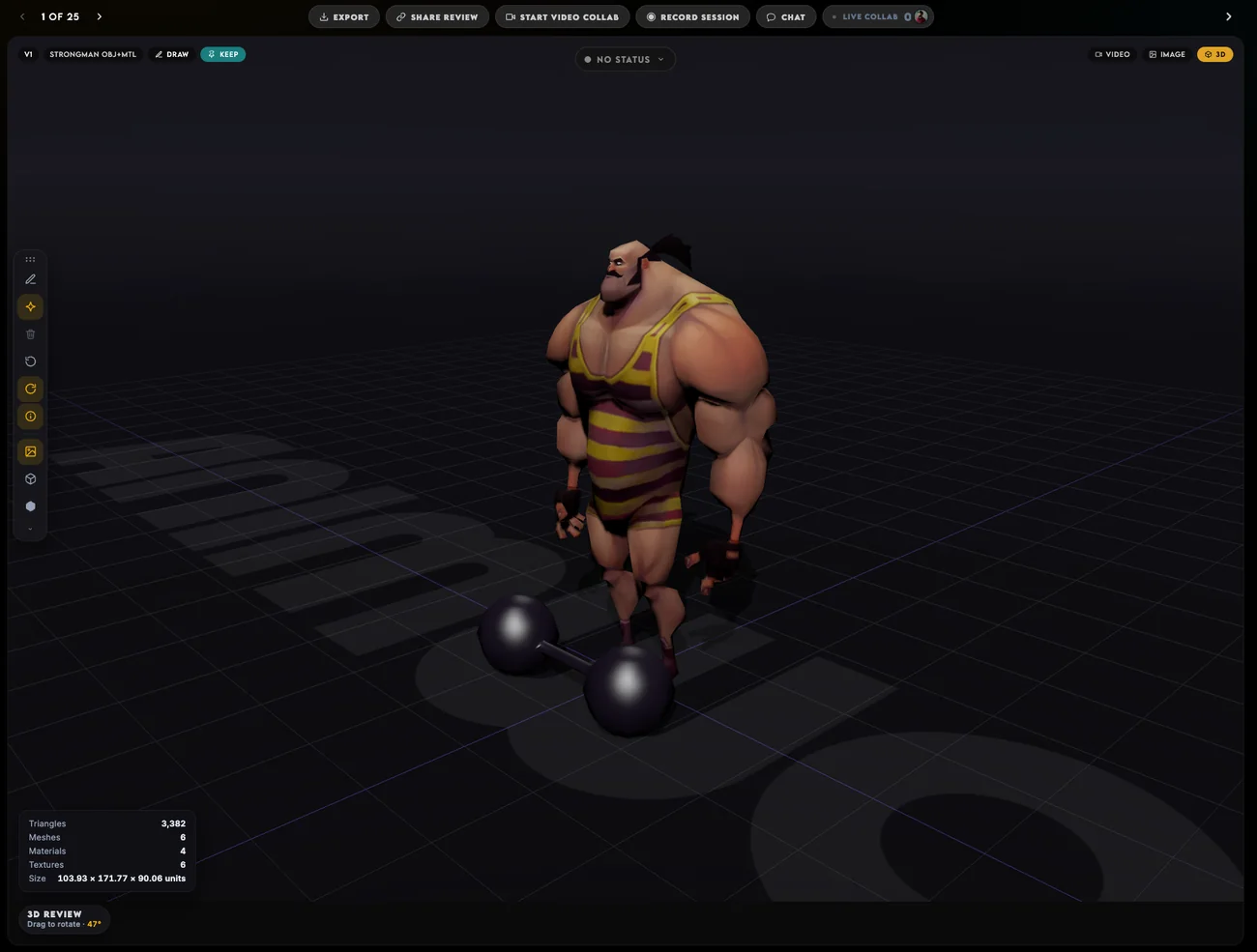
Drag a model in, same as a shot. Grab it with the mouse and turn it. Draw on it.
Your note stays pinned to the angle you drew it from, so nobody has to guess which side you meant. Takes FBX, OBJ and USDZ.
Scribble on one angle, turn the model, and the drawing puts itself away against that angle. You never press save.

Animated models
Drop in an animated FBX and it plays like a video. Play, pause, scrub along the bottom. Spin it round while it is playing.
Stop on a frame you do not like, draw straight on it, type your note. When someone opens that note later it takes them to that frame, looking from where you were looking.

See it three ways
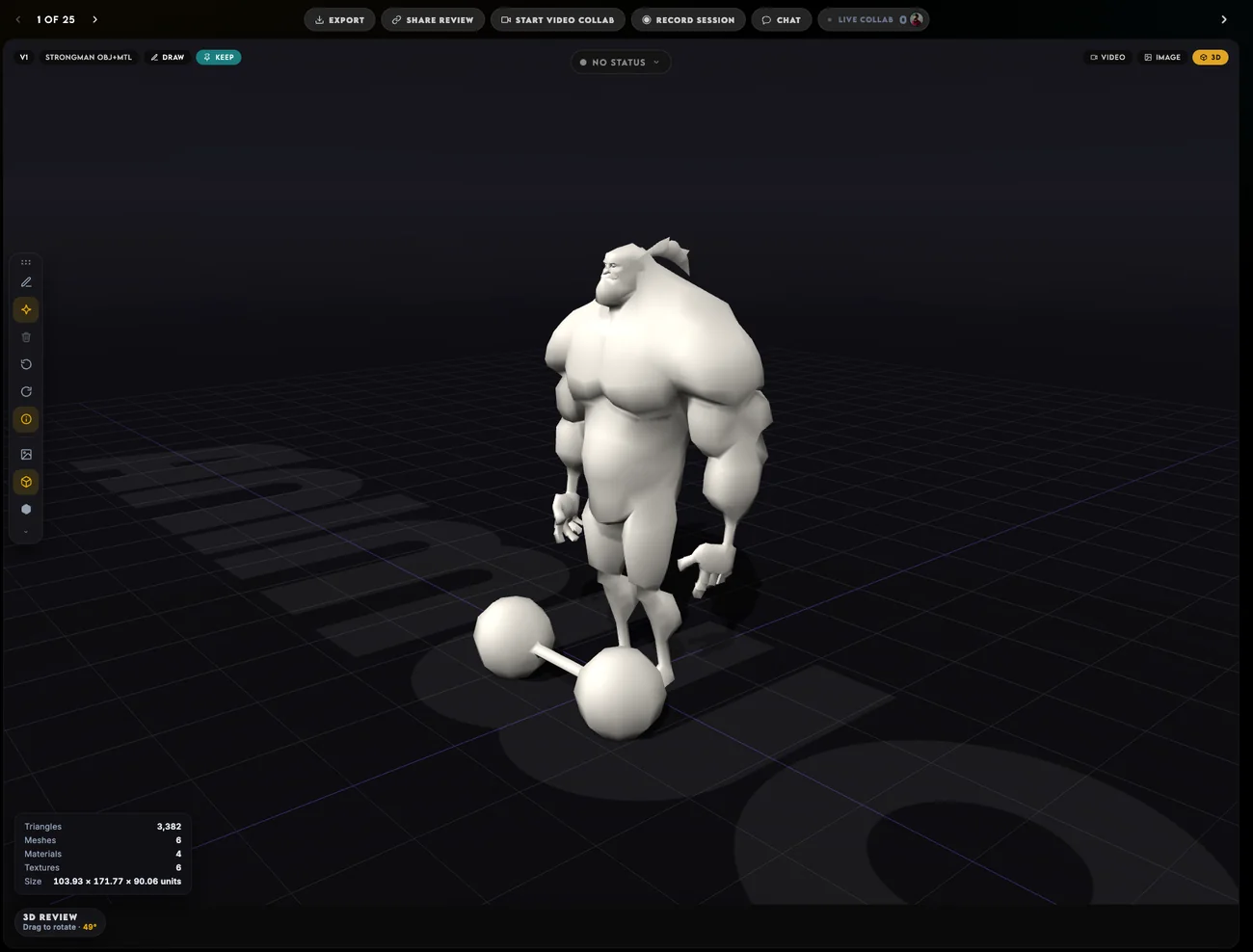
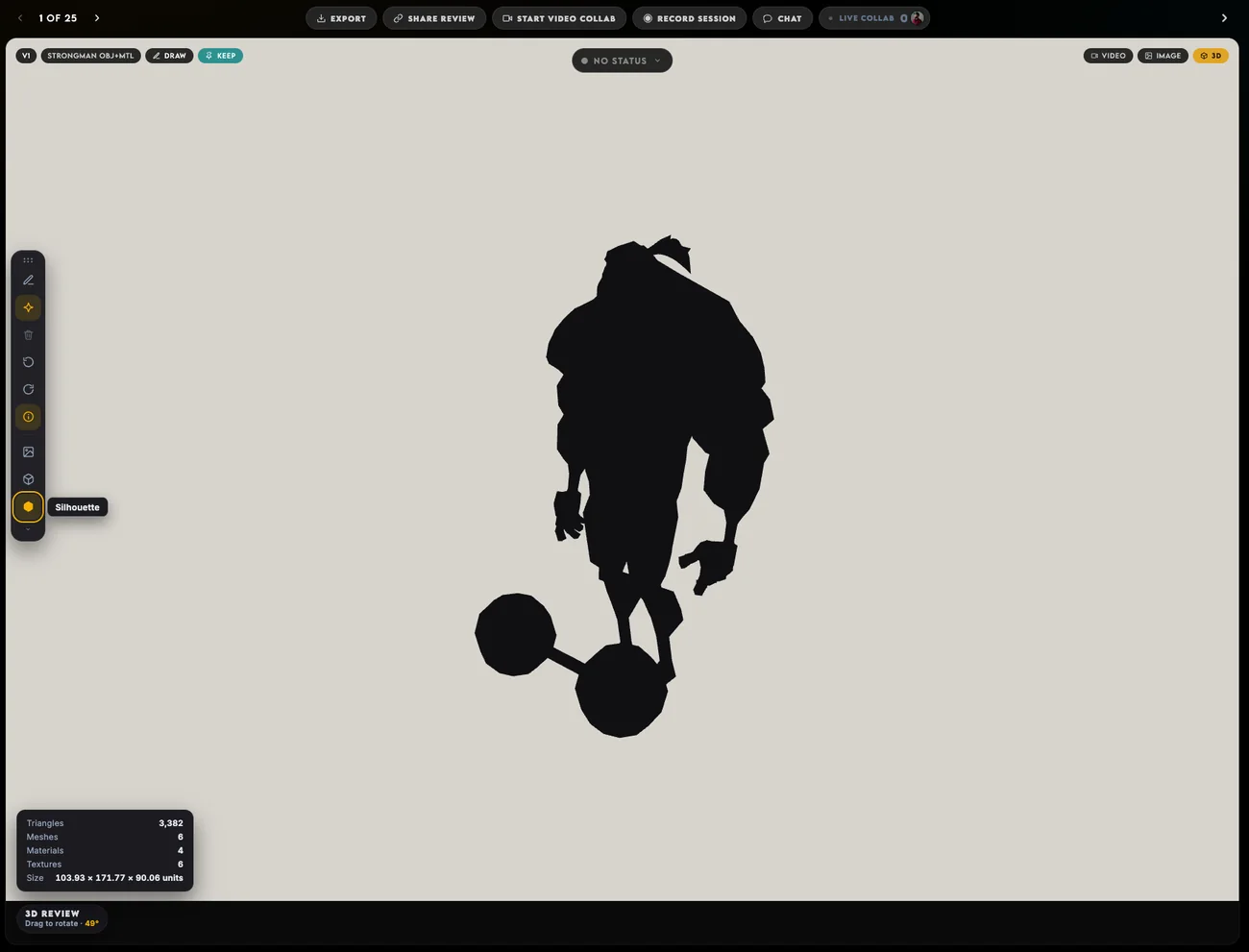
Three buttons over the model: as built, as clay, as a silhouette. The same passes you already flick between at your desk.
Publish from Maya
A button on your shelf. Send a playblast or a model and it is in the project by the time you have alt tabbed.
Send the same shot again and it stacks on top as the next version.

Your dashboard
Open it and everything you are reviewing is there: what you are working on, what is in it, what you worked on last, and anything that landed while you were away.
Thirty days to change your mind
Deleted a clip by mistake? Get it back. Projects and sessions too.
A tutorial that walks you round
Fourteen chapters. It points at the actual button on the actual screen while the app carries on working. Escape when you have had enough and it remembers where you stopped.

Also in
Calls on every account
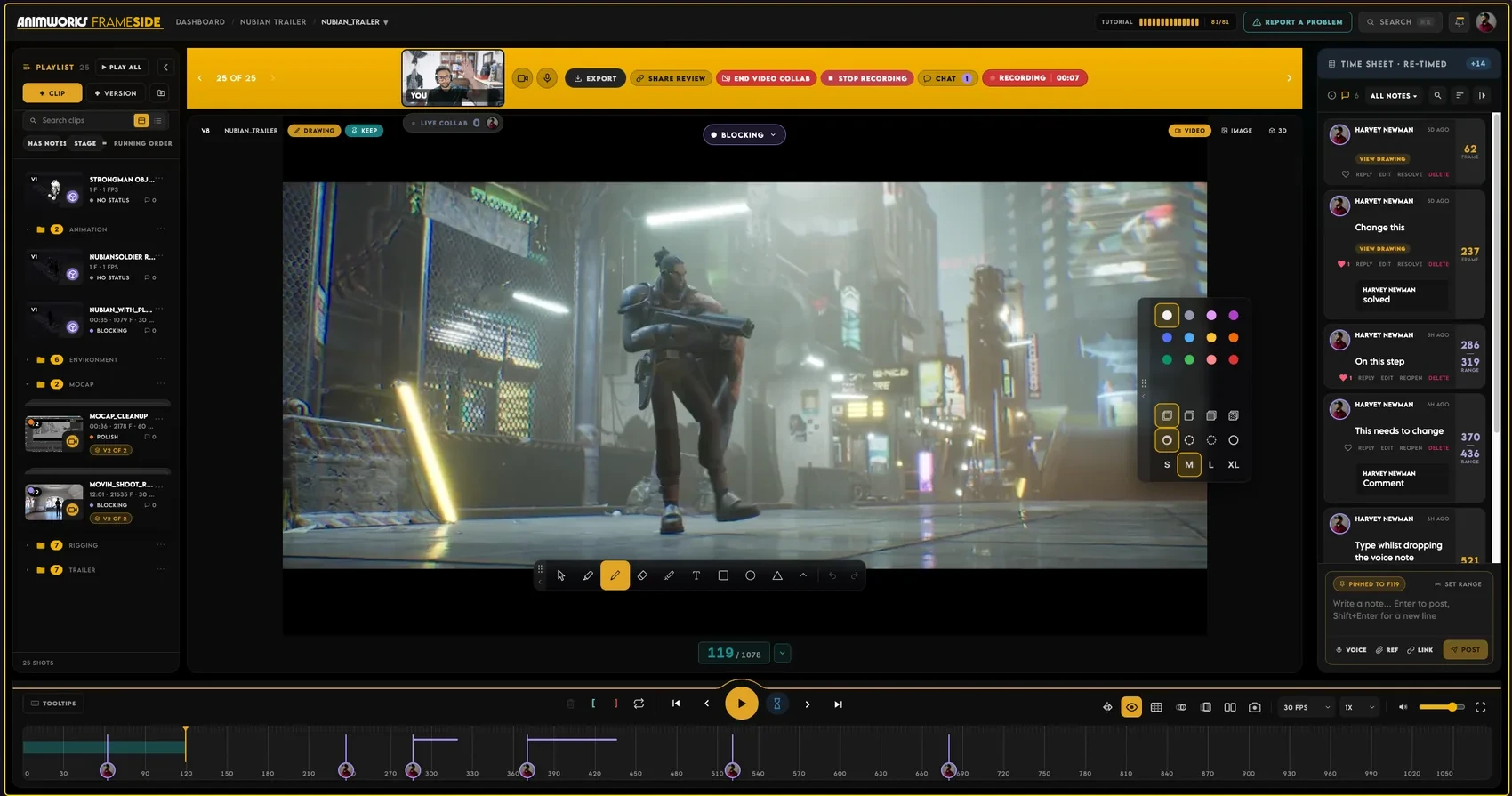
Chat, video calls and recorded sessions are no longer a studio thing.
OBJ brings its textures
And a model missing them turns up as clay instead of a black blob.
Straight to the clip
Clips open onto the clip. No splash in the way.
Recordings put the work first
The shot full frame, the camera in the corner.
The still is the shot
What you see before you hit play is the actual shot now.
One email, not three
Ask three people for files and you hear back once.
Runs in the browser
Nothing to install
Not for you, and not for anyone you send a shot to. Open the link and the review room is there, on whatever machine is in front of you.
What makes it different
Animation review software, not a video player with notes
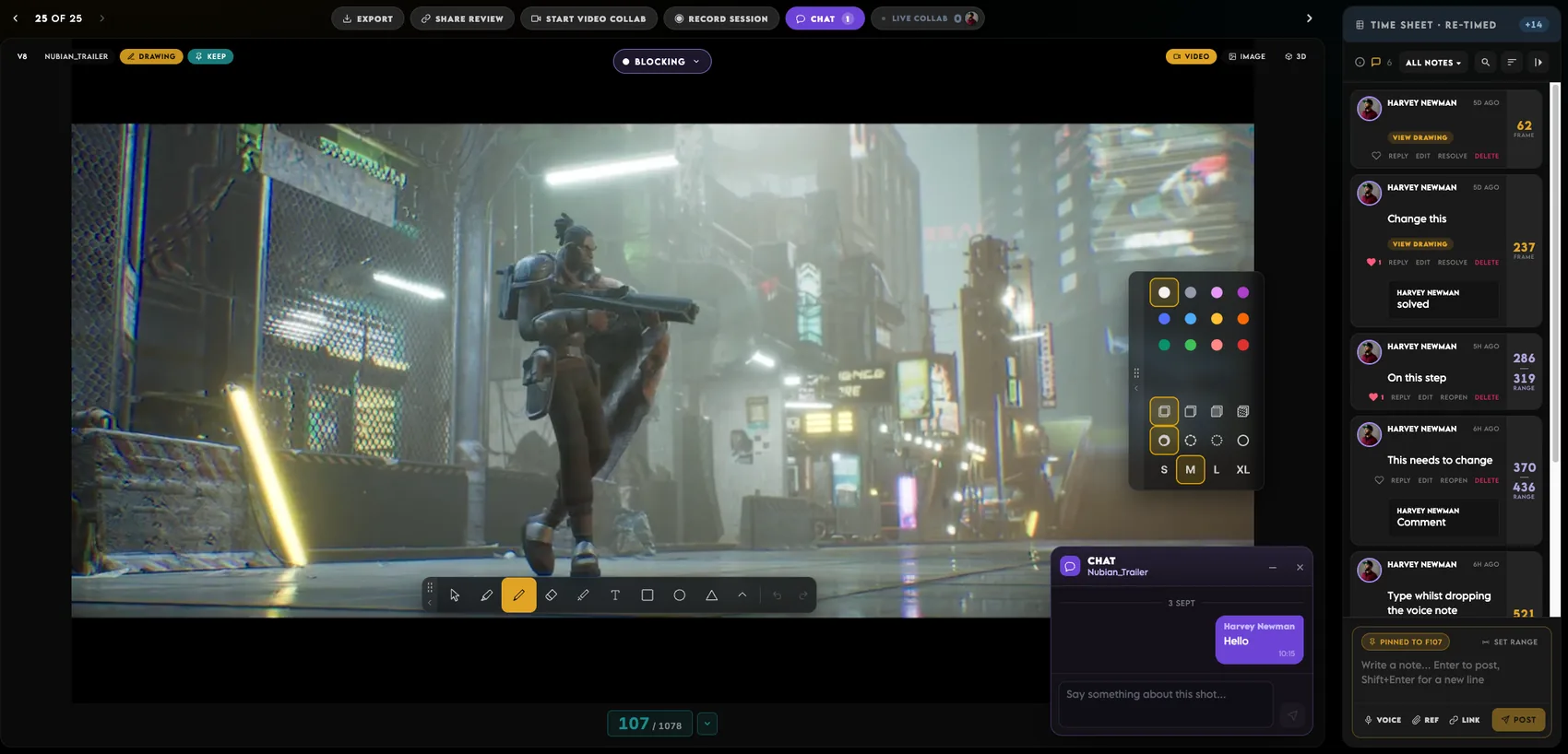
Most review tools were made for video teams and treat animation as an afterthought. FrameSide starts from how animation gets made: people drawing over the same shot, passes that change, versions that pile up, and a note that has to land on one frame.
Change the timing without re-rendering the shot
The time sheet opens beside the player as a vertical exposure sheet, one row per frame, the way an animator reads timing. Remove frames, hold frames, or put a whole clip on twos, then play the retimed version back in place to judge it. Nothing is re-encoded and your original file is never touched. Type the timing rather than clicking it: select a range, the number keys set the exposure and move you on, and Reset puts the original back. Notes stay pinned to the picture they were made about however the timing changes afterwards, and timing is a review note, so viewers can retime too, not only editors.

Draw over the same shot, at the same time
Start a video collab and everyone lands on the same frame, with camera and voice in the room. A bar across the top tells you that you are presenting and how many people are watching. Draw over the footage while they watch, hold ⌥ to point at a foot contact, and pick the toolbar up and put it wherever it is not in the way. Onion skinning and ghosting are in the same toolbar, because half of an animation note is about the frames either side. The drawings you make in the session are kept, not thrown away when the call ends, and a note somebody types lands on its frame while you are still talking.

Every version, one pile on the shot
Uploads stack on the clip as a pile of real frames. Fan the pile and each take opens its own card: when it went up, how big it is, how long it runs, the pass it is on, and how many notes are still open. From there you open it, compare it with the one before, put a new version on top, or download that exact take. Each version carries its own pass, blocking, spline, polish, final or approved, so a shot can sit in spline while its first blocking pass stays on record. Notes stay with the version they were made on.

See exactly what changed between takes
Press C and the previous version opens beside the current one. One side is marked current, the other linked, and the playheads run together so both are on the same frame. Break the link and each side runs free, then link them again and they snap back. It does not have to be like for like either: a screen recording of your Maya scene can sit next to the render that came out of it. The compare side is deliberately view only, so a note can never land on the wrong take.

Set the review up the way you run it
A project is folders. Group a day’s shots into a review session that opens as one playlist, and file the rest into folders that hold clips, whiteboards and anything else. The top of the project counts where you are: clips, folders, notes, and how many shots are still in blocking. Below it, the latest comments and what changed recently, so you can see what happened while you were out. Bring people in as editors who can change things or viewers who can only comment. Send an upload link to a student or a client and they drop files straight into the project, with no account and no email attachments. And if the studio runs ShotGrid, connect the project once and push versions and notes across.

Every review you recorded, waiting for you
Record a session and it lands here when it finishes. The last one sits at the top with a Resume button that picks up where you stopped, and the rest are below with their length on the still. Filter down to the ones with guests in them, the ones nobody has watched, or just this week. The panel beside it counts the month: how many sessions, how long in total, how many notes came out of them, how many guests. Delete one by mistake and it waits thirty days.

Who uses it
For animators, and for everyone who reviews their work
Review and approval is the same loop everywhere: someone makes a shot, someone else says what is wrong with it, and it goes round again. FrameSide runs that loop in animation’s own language, for the artist doing the work and for the supervisor, director, producer or client answering.
Animators and freelance artists
The shot on your desk this week. Put up a playblast, get notes that land on the frame they are about, and keep every version stacked with the pass it belongs to. Send the link to whoever is checking it and they answer without making an account.
Mentors, students and schools
Name a review session after the person it belongs to and a term of work is one playlist instead of a folder of files. Draw over the shot together on a call, and the student keeps a PDF of the review with the frame pictured under every note.
Studios and teams in animation, VFX and games
Projects hold people as editors or viewers, folders hold subfolders, and a review session turns a day of dailies into one playlist that opens from a single link. Every shot carries its own pass, from blocking through to approved, and handing one to someone puts it in their Waiting on you.
Supervisors, directors, producers and clients
The people whose opinion you asked for should never cost you a seat. A share link opens for anyone, with an expiry, a password, a watermark and downloads switched off if you want them, and they can watch, draw and comment with no account at all.
Bringing in a studio or a class?
Invites go out in waves, and a team is far easier to bring in together than one request at a time. Tell us who you are, what you make, and roughly how many people would be sitting in the reviews, and we will set the whole group up at once. Pricing is not settled yet, and nobody in the beta gets charged without hearing from us first.
How the beta works
From your account to your first review
Three steps, and no waitlist games. The account you make here is the one that opens FrameSide, so there is nothing to install and nothing to set up when your invite lands.
Step 01
Sign in, or create your account
Use the Animworks account you already have, or make one in about a minute. You are on the list the moment you are in.
Step 02
Invites go out in waves
We invite in batches so the room stays fast and every wave of feedback is acted on before the next one arrives.
Step 03
Your invite opens FrameSide
It links you straight in with the account you signed up with, so there is no second password and nothing to set up when you arrive.
Capabilities
The whole review room, on every project
No feature is held back for a paid tier while FrameSide is in beta, and the tools a reviewer needs are never the ones behind a paywall.
Built with animators, in the open
Every part of this came from someone reviewing a real shot and saying what was missing. There is a report button inside the app, it sets the build order, and it has changed it more than once. That is the whole reason the beta exists.
Board it out on a whiteboard
Make a whiteboard inside the project, sketch the idea, write the notes beside it and it saves itself with a thumbnail. Keep them in folders next to the shots they belong to, so the rough thinking lives with the work instead of in someone’s sketchbook.
Nobody misses a note
A bell that tells you when a note lands on your shot, when someone replies to yours, and when a shot is handed to you. Sign in and the review is waiting, whether you asked for it or you are the one giving it.
Sequences and storyboards
Drop a folder of rendered frames and it plays as a shot, colour managed from linear EXR. Drop a PDF storyboard and it pages like one, so a note pins to page 7 exactly the way it pins to frame 613.
Leave with the review
Export the session as a branded PDF with the frame pictured under every note, or a CSV shot list for the tracker. It is the thing a student still has after the call ends. Included on every project, never a paid extra.
Share it with anyone, on your terms
A share link needs no account and no seat, so a director, a client or a whole class can watch and comment without ever signing up. Put a password on it, give it an expiry, switch downloads off and add a viewer watermark, and revoke it the moment you are done.
By the numbers
The four that matter to an animator
23.976
Counted exactly, not rounded
Stored as 24000/1001, alongside 24, 25, 29.97, 30, 50, 59.94 and 60.
7
Rendered formats play in the browser
EXR, DPX, PNG, TIFF, TGA, JPEG and WebP, straight from the render folder.
∞
Reviewers per share link
No account, no seat and no paywall, on every project.
£0
What the beta costs
Every feature open while we build it with you.
See it running
A walk through FrameSide
We built this because reviewing animation over a shared screen was costing everyone time. Here is the room in use.
What it costs
Free while it is in beta
We are not asking anyone to pay for software we are still building. When pricing does arrive, beta testers hear about it first and nothing changes without warning.
£0Every feature, every project, for as long as the beta runs.
What free means here
Not a trial, not a seat count, and not the good half held back. The whole review room, and the reviewers you invite never pay at all.
- Unlimited reviewers on every share link
- Frame-exact notes and drawing
- Version stacks and compare
- Image sequence review
- Live sessions with video and voice
- PDF and CSV export
FAQ
Questions, answered plainly
Everything worth knowing before you put a real shot through it. If something is missing, ask us and we will answer.
Still have a question?Ask the Animworks teamWhat is FrameSide?
A review room for animation. You upload a shot, everyone watches it together or in their own time, draws over it, and every note lands on the exact frame it is about. It is made by Animworks, built with working animators, and it runs in the browser.
What makes animation review software different from a video review tool?
The controls are animation controls. Onion skinning and ghosting, framing guides, a pass on every version rather than one status on the file, compare between takes, rendered image sequences played as shots, and a timeline that counts in frames. A general video tool gives you a comment at 4.875 seconds; this gives you a note on frame 117, and a drawing on top of it.
Is FrameSide for studios and teams, or just for individuals?
Both. A project holds people as editors or viewers, folders hold subfolders, and a review session groups a day of dailies into one playlist that opens from a single link. Every shot carries its own pass and can be handed to a named person, so a small studio in animation, VFX or games can run its rounds in it. It is just as happy holding one freelancer’s shot.
Does it work for VFX and games, not only animation?
Yes. It plays rendered image sequences straight from the render folder, EXR, DPX, PNG, TIFF, TGA, JPEG and WebP, which is what a render produces. Motion runs from a proxy so it can move at all, and the moment you pause you are on the frame you rendered at source resolution. Converting a sequence to video first throws away the pixels you are trying to judge.
How do we get a whole studio onto the beta?
Write to partnerships@anim.works and tell us what you make and roughly how many people would be in the reviews. We will bring the group in together rather than making everyone request a place one at a time, and we will set the projects up with you.
How does it compare with SyncSketch or Frame.io?
They are good tools and they aim wider. Frame.io serves creative teams of every kind, and SyncSketch serves visual collaboration across VFX, animation and games. FrameSide is narrower on purpose: the controls are animation controls, the passes are animation passes, and the people you show work to are never charged for. If you need 3D model review or a deep pipeline integration today, they have it and we do not.
Who is it for?
Animators, mentors and small studios. It suits anyone who sends a playblast and gets back a paragraph of notes that never say which frame the problem is on.
Do I need to install anything?
No. FrameSide runs entirely in the browser, for you and for anyone you share a shot with. There is no plugin to install and no version of it to keep updated.
Can it play image sequences?
Yes. Drop a folder of numbered frames and it plays as a shot: EXR, DPX, PNG, TIFF, TGA, JPEG and WebP. Motion runs from a proxy so it can move at all, and the moment you pause you are looking at the frame you rendered, at source resolution. Linear EXR gets a display transform on the way in, so 18 percent grey lands where it should instead of arriving crushed and dark.
What can I upload?
Video files, image sequences and PDF storyboards. A storyboard pages like a clip, so a note can pin to page 7 the same way it pins to frame 613.
Can I compare two versions?
Press C and the previous version opens beside the current one. Link the playheads to scrub both in step, or break the link to hold a piece of reference against your own timing. Relinking snaps them back together so linked always means linked.
What happens in a live session?
Everyone sees the same playhead, the drawings appear as they are made, and there is camera and voice in the room. Whoever is presenting can lock the playhead so the room stays together, and anyone can break away to look at something and then snap back. Drawings made during the session are kept afterwards, not thrown away when the call ends.
Can I get the notes out?
Yes, two ways. A branded PDF with the frame pictured under every note, which is the artefact a student keeps after a mentorship session, and a CSV shot list for whatever tracker you use. Both are included on every project.
Can I organise a review into sessions and folders?
Yes. A review session groups a set of shots into one playlist, which is how a day of dailies or one student’s work is usually looked at, and a single share link opens the whole session for guests. Everything else files into folders, and folders hold subfolders, clips and whiteboards. You can name a session after the person it belongs to.
Can I make a board rather than review a shot?
Yes. Whiteboards live inside a project like clips do: make one, draw the idea, write the notes beside it, and it saves with a thumbnail so you can find it again. Keep them in a folder next to the shots they relate to. Finished PDF storyboards can also be uploaded and reviewed page by page.
How do I ask someone for a review?
Hand them the shot. It appears in their Waiting on you and they get a notification, so the request is on the shot rather than buried in a message. If they are not in the project yet, invite them, as an editor who can change things or a viewer who can only comment. For anyone outside the project entirely, send a share link and they need no account at all.
Will I know when someone leaves a note?
Yes. There is a bell for a note on your shot, a reply to a note of yours, and a shot being handed to you. It works the same whether you asked for the review or you are the one giving it.
Is my work private?
Yes. A project is visible only to you and the people you invite. Nothing is public unless you create a share link for it, and you decide what that link allows.
Do reviewers need an account?
No, and they never will. A share link opens for anyone, they can watch and comment, and they cost you nothing. Charging for the people whose opinion you asked for is the thing we most wanted to avoid.
Can I put a password on a link?
You can set a password, an expiry date, whether the file can be downloaded, and a watermark carrying the viewer’s name across the picture. Revoking a link takes effect immediately, on the page and on the footage behind it.
What does the beta cost?
Nothing. Every feature is open while FrameSide is in beta. When pricing arrives, beta testers hear about it first.
How do invites work?
We invite in waves rather than all at once, so the room stays fast and each round of feedback is acted on before the next group arrives. Your invite links you straight in with your Animworks account.
What are you looking for from testers?
Real shots and honest complaints. Review your actual work in it, and when something is missing or wrong, use the report button inside the app. That feedback sets the build order, and it has already changed it more than once.
Will it stay free?
The beta stays free for as long as it runs. After that there will be a paid tier, and there will also still be a free one: unlimited reviewers and the core review toolset are not things we intend to charge for.
Get started
Help us build the review room animation deserves
Sign up, get your wave, and put your real shots through it.